Chattie
A downloadable tool for Windows
It’s a tool designed for small and mid-sized streamers to improve their quality of life. Chattie is a lightweight executable app that doesn’t use much of your PC’s resources.
Chattie is a simple, standalone desktop app that solves this problem. It connects to any Twitch channel and reads the chat messages aloud using a clear, high-quality voice, allowing you to stay engaged with your audience without ever taking your eyes off the action.
It's your personal chat co-pilot, designed to be lightweight, stylish, and incredibly easy to use.
Features
- Real-Time Chat Narration: Hear messages from your audience as they arrive.
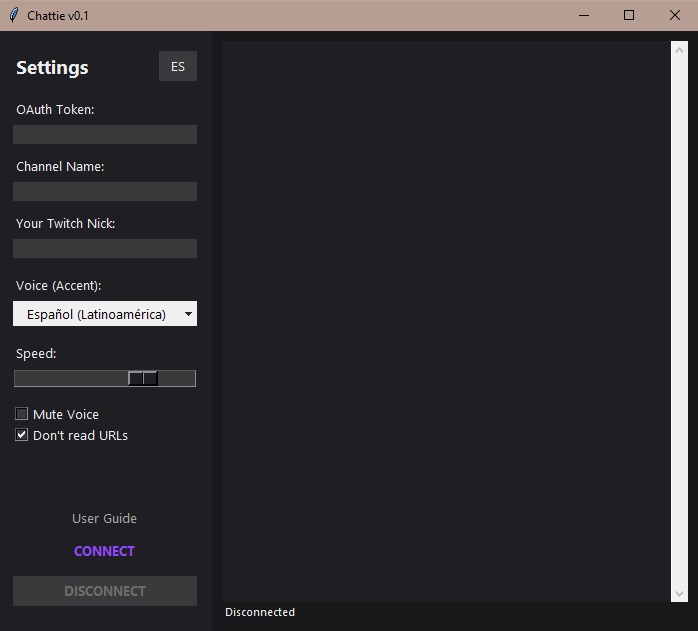
- Customizable Voice: Choose between different accents (Latin American Spanish, US English) to find the voice that fits your stream.
- Full Playback Control:
- Adjust the reading speed with a simple slider.
- mute and unmute the voice with a single click.
- Enable the "Don't read URLs" option to skip long, unreadable links.
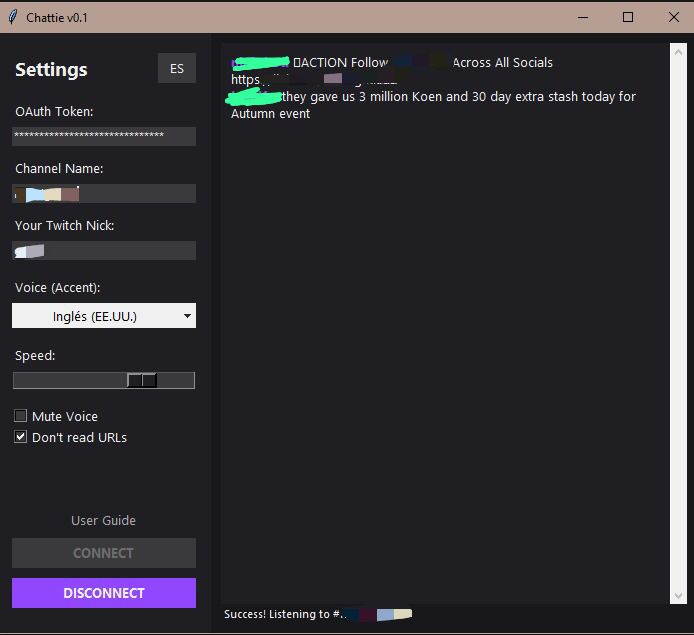
- Visual Highlighting: The message currently being read is highlighted in the chat window, so you can easily follow along visually.
- Sleek, Modern Interface: A beautiful, dark-themed UI inspired by Twitch itself that looks great on your desktop.
- Standalone & Lightweight: No browser extensions needed. Chattie is a self-contained application that runs on its own.
This is Just the Beginning!
Found a bug? Have an idea for a cool new feature? Let us know in the comments below! Your feedback is essential to making Chattie even better.
Happy streaming!
Download
Install instructions
Getting Started
- Get Your Twitch Token: This is a secure key that allows Chattie to connect to Twitch's chat.
- Go to: https://twitchtokengenerator.com/
- Select "Custom Scope Token".
- Check the boxes for chat:read and chat:edit.
- Generate the token and copy the long string of characters.
- Fill in the Details:
- Paste the token into the "OAuth Token" field.
- Enter the name of the channel you want to listen to in the "Channel Name" field.
- Enter your own Twitch username in the "Your Twitch Nick" field.
- Connect! Hit the CONNECT button and you're all set. Messages will start appearing and being read aloud.
Leave a comment
Log in with itch.io to leave a comment.